Reading Sync Logs
How to Read the Sync Details
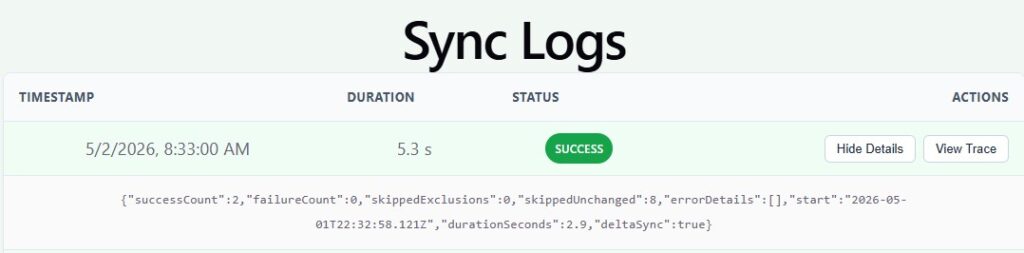
When you expand a sync log, you’ll see a technical breakdown of what happened during that sync. Here’s what each line actually means:
successCount
How many items were successfully synced or updated. If this number is going up, everything is working normally.
failureCount
How many items failed to sync. A value of 0 means there were no errors. If this number is higher than zero, the system will show the error reasons in errorDetails.
skippedExclusions
Items you’ve chosen not to sync (for example, products you’ve excluded). These are intentionally skipped — not errors.
skippedUnchanged
Items that didn’t need updating because nothing changed since the last sync. This keeps the sync fast and efficient.
errorDetails
If something fails, this section lists the exact reason. If it’s empty ([]), there were no errors.
start
The exact timestamp when the sync began. Useful for matching events with your store activity.
durationSeconds
How long the sync took, measured in seconds. Short times mean the system is running efficiently.
deltaSync
- true — only changed items were processed
- false — a full sync was performed Delta syncs are faster and reduce load on your store.
In short
This section tells you:
- what was updated
- what was skipped
- whether anything failed
- how long it took
- whether it was a full sync or a delta sync
Understanding the Sync Trace Log
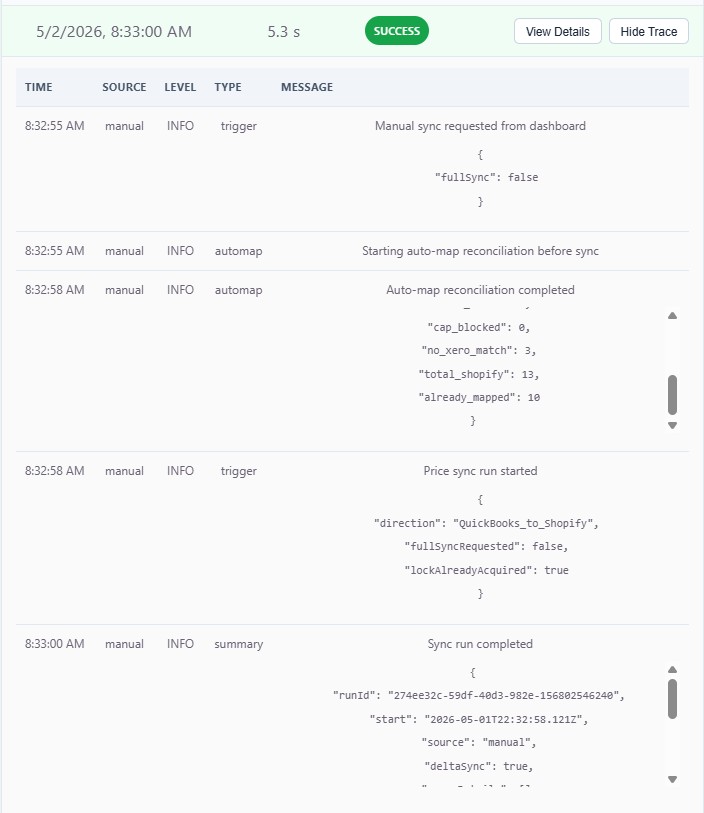
The Trace Log provides a chronological record of every action taken during a sync. Each line represents a specific event, including when it occurred, what triggered it, and what the system processed. This information is useful for understanding the flow of a sync and for diagnosing issues if something does not behave as expected.
TIME The exact moment the event occurred. This allows you to follow the sequence of actions during the sync.
SOURCE Indicates what initiated the action.
- “manual” means you started the sync from the dashboard.
- “system” means the automatic scheduler triggered it.
- “webhook” means Shopify or QuickBooks notified the system of a change.
LEVEL Shows the importance or severity of the message.
- “INFO” indicates normal activity.
- “WARN” indicates something unexpected but not critical.
- “ERROR” indicates a failure that may require attention.
TYPE Categorises the action being logged. Examples include:
- “trigger” for sync start events
- “automap” for item‑matching operations
- “summary” for the final completion report
MESSAGE A description of what happened at that step. Some messages include additional structured data showing counts or settings used during the sync.
Interpreting the Events in This Example
Manual sync requested: You manually started a sync from the dashboard. The log confirms whether it will run as a full sync or a delta sync. In this case, fullSync is false, meaning only changed items will be processed.
Auto‑map reconciliation started: Before syncing, the system checks your Shopify items against QuickBooks to ensure everything is correctly mapped.
Auto‑map reconciliation completed: This section shows how many items were reviewed and how many were already mapped. It also shows how many items did not have a matching item in QuickBooks. These are not errors; they simply indicate items that cannot be synced until a match exists.
Price sync run started: This confirms the direction of the sync (for example, QuickBooks to Shopify), whether a full sync was requested, and that the sync lock is active to prevent multiple syncs from running at the same time.
Sync run completed: This is the final summary of the sync. It includes a unique run ID, the start time, the source of the sync, and whether it was a delta sync. If no errors appear in the trace, the sync completed successfully.
Summary
The Trace Log shows the internal steps of the sync process from start to finish. It confirms how the sync was triggered, how items were matched, what direction the sync ran, and whether it completed without errors. If all entries show INFO and no ERROR messages, the sync ran normally.